Going “QR Qrazy” with QR codes in our iPad BYOD middle school environment

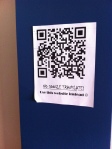
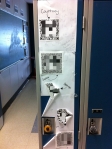
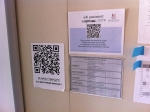
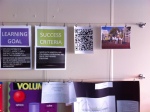
One look at the walls and displays in our new iPad BYOD  middle school demonstrates  some exciting changes to our school environment. Displays on walls and hallways are now “alive” , as teachers use QR codes to create scavenger hunts, links to videos, documents, sites, student work even text messages. The walls are well and truly interactive which makes sense as each student has a tablet (and/or phone) in their pocket ready to scan.
Here is are some examples.
IMG_4590 edit    IMG_4588     IMG_4592 edit    
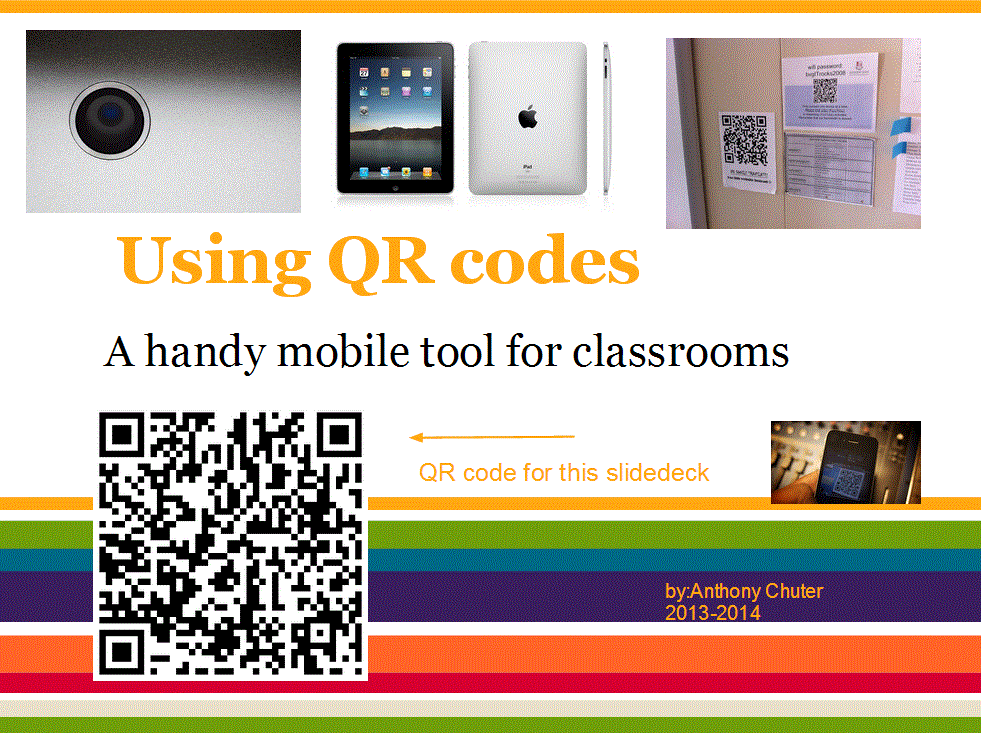
IMG_4589 edit     IMG_4591  qr code slidedeck

1. Schedules 2. Important Links 3. Student created QR code 4. wifi information. 5. Student work 6. Slidedeck for teachers

The 3rd  is my favourite. Students often decorate the lockers of their friends on birthdays. This group of friends actually covered their locker in QR codes with birthday wishes and messages which appeals to my both my geeky and sentimental side. A typical sign of how millennials seamlessly use and weave technology in their personal and social lives.

What is a QR code?

A QR is a scannable barcode that can

  • take you to a website
  • open an online file
  • link to a video
  • generate a text message.

At the beginning of the year, I had the opportunity to lead our teachers in a hands-on perhaps “scan-on” workshop where we discussed and explored the possibilities of using QR codes in class. Tony Vincent’s Learning in Hand website and Twitter feed proved to be a valuable source of resources and ideas for using this technology to aid and support students, parents, teachers and other members of our learning community.

Here is Tony Vincent’s excellent introductory video.

Scanning QR codes

Using these apps you can turn your smartphone or tablet (or even computer) camera into a programmable scanner. To effectively use QR codes in the class, you will need to create QR codes and provide resources for students, colleagues to read or scan them.
I-nigma QR app – Free
Scan – $1.99
More examples are listed here on this excellent blog site.

Three QR code creation sites on computer

http://qrcode.kaywa.com/
http://goqr.me/
https://www.the-qrcode-generator.com/

I usually create QR codes and use them to share, print or insert in a variety of digital or print materials. They can be copied and pasted like any digital image.

Further possibilities for QR codes
I love this idea of creating a QR code voice message. Do your students ever mention that they hear your voice at night? Now you can really make that happen.  Create a message or instructions to students using this website. and put in their handouts, notes or even textbooks (cue evil laugh) http://qrvoice.net/
How about student book reviews as a number of librarians have began putting QR codes in books so that students can hear from peers while browsing.

QR code scavenger hunts are also fun too. Here is an example at http://www.classtools.net/QR 
  
Useful QR code articles and source material
Vicky Davis’s awesome QR code classroom implementation guide
Tracy’s Watanabe iPad blog – some great ideas and resources for QR coding in the class.
Monica Burn’s article from Edutopia – 5 reasons I use QR codes in the classroom
Mr. Avery’s “Going Rate” Math QR code scavenger hunt
Richard Byrne’s review of QR Voice – lots of other good QR resources below the article too
Jackie Gerstein’s Mobile learning activities
Tony Vincent’s Learning in Hand blog – http://learninginhand.com/
Online QR creating with Kaywa Code Generator – using this on all my devices
Stylish QR codes with Visual Lead
Janiet O’Hara’s site on QR codes – love tagmydoc and visual lead
YouTube QR code generator

And here is the QR code for the site. Coming to a wall or screen near you!
Dec. 9th-13th Computer Science Week – Resources for The Hour of Code and beyond

Each day this week, we have been coding with our Junior and Senior students to celebrate Computer Science week and the Hour of Code. Each day I have been tweeting some thoughts, ideas and resources on this topic. —- >

Here are some resources I have found useful to explore and share programming and coding with students.

Why learn Computer Science?

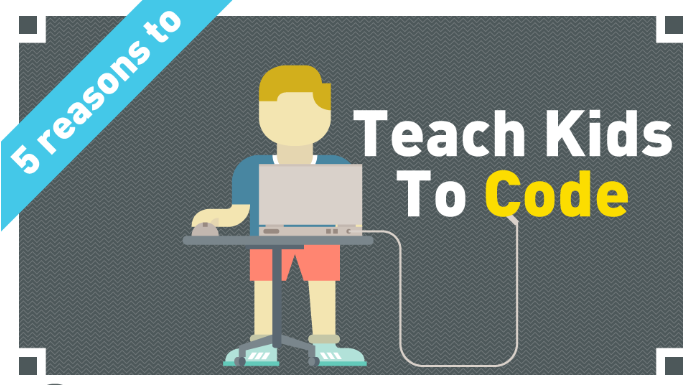
 Kodable’s 5 reasons to teach kids to code  
5 reasons to code
Here is a very cool resume programmed in the style in Super Mario World by Robbie Leonardi
cool programming resume
Google celebrates Comp. Sci. week with a Google Doodle on Grace Hopper
unnamgrace hopper

The ScratchEd has produced an activity to celebrate this week. Who wants to send a Holiday card this season when you can send a holiday code instead?!

HOC studios
Here is the link.

Finally, here is a link to my programming page with ideas for using Scratch in the classroom,  some articles and resources for coding on tablets and/or computers. I also outline 4 key concepts for introducing programming through tools like Scratch. Having a great Comp. Sci. week so far. My highlight this week was on Monday when a very quiet and very new Grade 5 student who burst into my class during his playground keen to show his progress in Scratch despite ONLY a 10 minute introduction the prior morning before he had to leave for his basketball game. It was a teaching moment I won’t forget!

Happy Coding!

~Anthony

Programming to think on the Internet of Things

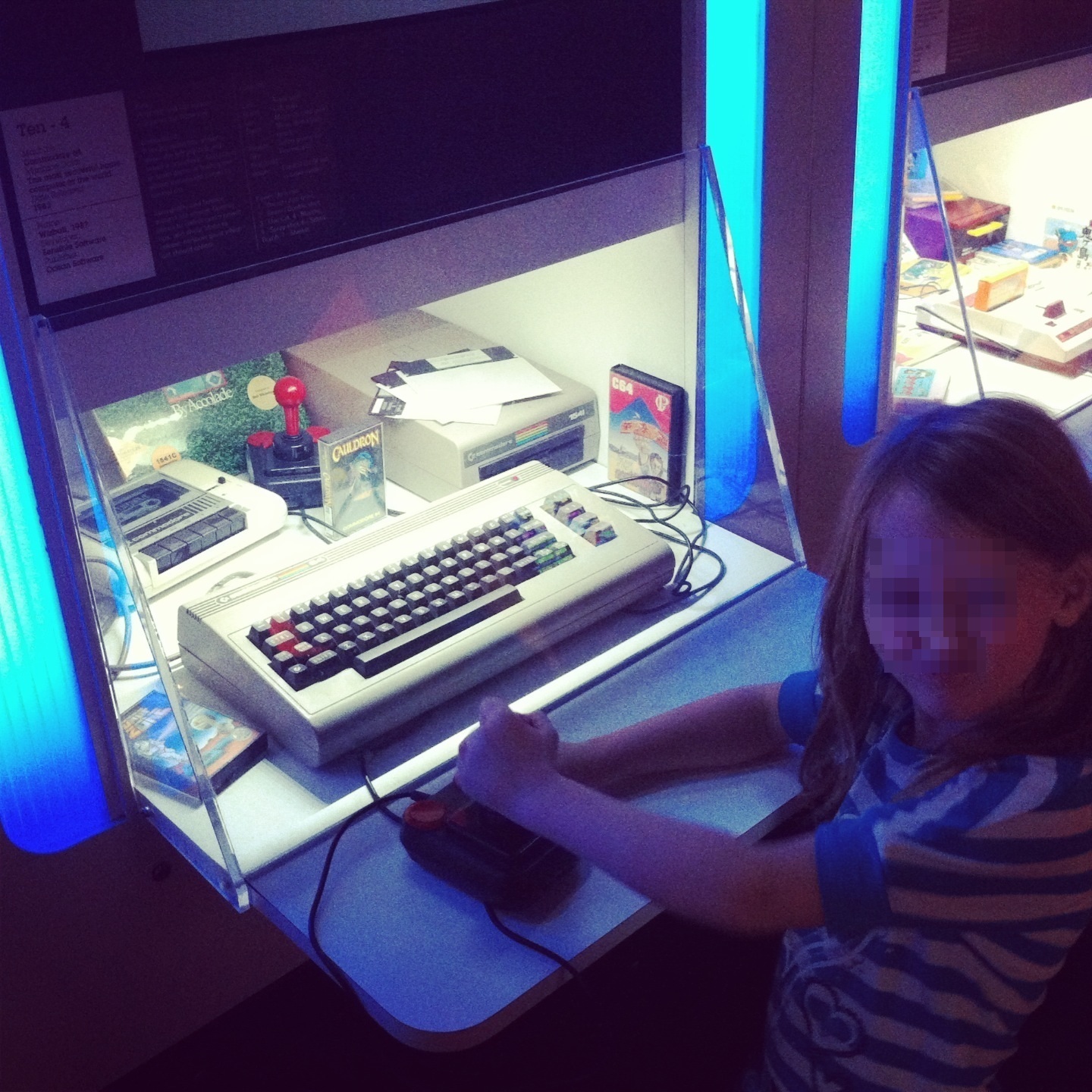
My daughter and I exploring retro games at the Game On exhibit at the Ontario Science Centre.
s c64
Walking around the exhibit, I started thinking about the impact of programming on my life. Consider that we now have a well established “internet of information” where the majority of programming takes place on a specialized device (computer) and are beginning to experience an additional phase of programming on an increasing number of connected everyday devices (through wifi, Bluetooth etc.) AKA the internet of things. Who is going to have the expertise (and time) to connect and program all these new devices in the coming days?!

My first programming memory starts with my Commodore 64 back in the day (ok I’ll own up, early ’80’s). Many an hour (or four+) was spent tinkering and playing with the keyboard, basic OS and removable media of that day (cassette tapes and then floppy disks). This machine helped me learn to program in Basic, Logo and of course play (and manage) many applications and of course many, many games with friends. It was often SO slow that complete games of hockey, baseball, meals or general socializing could take place (while waiting for games like Jumpman, Grand Prix or California Games (among many other good and not so good games) to actually load! In retrospect, I think perhaps more time was spent talking about, finding, saving and sharing than actually playing them…but the chase is sometimes the best part. However, this slow unreliable but well-loved computer taught me much about programming and computer operations like keyboarding and even web browsing through a basic modem (remember the BBS anyone). In this stage, programming was confined to speciality devices like computers and its interest was confined to us geeky kids. (Although, I’ll bet that all the best tech-savvy individuals you know from Generation X group probably have a some history with an Apple III, C-64, VIC-20 or even Amiga etc. but I digress.  (For fun here is a list of the 100 most popular C-64 games.)

My next programming memory takes place in Cambridge in the United Kingdom sometime in 1998. My then savvy girlfriend, now my beloved wife told me that the engineering department was working with AT&T to create a programmable fridge. The fridge would record the contents inside through the barcode  and presumably send the results to someone’s computer. Sounded cool but this was still outside the daily experience of the everyday (especially us on an starving student budget). Although it was early days I would characterize this as a key moment in the “internet of things” as an everyday object (fridge) becomes “smart” enough to connect with another speciality device (computer).

However, the world of mobile devices is where connected devices become quite handy and a ready technology for the everyday. With an increasing amount of devices on the network our smartphones become our “remote control” for the home and potentially the world. In this new phase of programming, the “smart” fridge has increasing functionality, presumably as an app for our phones, making a list so we can check it twice, before we receive a message geo located and timed when near the local grocery store. We can control objects through specific settings and have those objects are set up to predict our needs. (i.e. think scheduled recordings on a PVR but for every object.) This article from Wired’s June 2013 issue called “Welcome to the Programmable World” by Bill Wasik probably best describes up the benefits and challenges in this new phase of programming.

In this new world of “smart” objects, programming skills like designing, debugging and re-mixing are going to become increasing mainstream. In October at ECCO 2013, I have been asked to present about my work with a visual programming language called Scratch in my technology classes. My junior students love Scratch as it is a digital extension of playing, tinkering and creating. I look forward to sharing my experiences, successes and resources with programming. (Here is a link to my Scratch resource page.) The UK education system has already adopted programming as a key revision of their ICT curriculum in 2014. The United States also has a strong movement to champion programming represented at code.org. So I feel in good company support the need for programming in the already busy elementary curriculum.

I look forward to chatting about my Adventures with Scratch in the classroom and especially the increasing interaction between digital and physical objects. (My Makey Makey kit is in the mail and I look forward to exploring this intersection of the digital and physical in the new school year.

Here is a link to my presentation at ECCO 2013. I look forward to sharing, discussing and evaluating new and exciting pedagogy with technology.
ARC BIT_LG_schpxy

Here is a cool info graphic on the Internet of Things with a link back to the original source.Internet of things

Mobiles in the 1 device classroom and beyond

Everywhere you look mobiles are having a dramatic impact on the world around us. Ask yourself…how have you used your “phone” in the last week? I sure your answers are varied and will amaze you.

But what about the classroom…teachers are realizing the potential for the anyplace, anywhere, anytime aspect of mobile devices as an powerful resource for learning, creating and sharing.

“In addition, since the fourth quarter of 2010, smartphone and tablet sales have exceeded PC sales – and the growth trends continue to favor these newer devices. Mobile devices now account for 13% of global Internet traffic – and rising.”

Source: http://readwrite.com/2013/05/13/mobile-is-taking-over-the-world

Here are 3 examples of sample activities for teachers in the one device classroom.

1. Use your phone to record (i.e. oral assessments, collaborations and for multimedia projects) I use Evernote, VoiceThread and an app called  Recorder Pro)
2. Take pictures as Assessment as Learning (i.e. spreadsheet with check boxes or take photos for reviewing, sequencing and reflecting)
3. Access and edit critical files (schedules, team lists, check lists, PDFs )through apps like Skydrive, Dropbox and Google Drive (in the last one, up to 50 people can collaborate on one doc, spreadsheet or presentation)

My examples are from the Apple App Store but if that specific app is not available, there are many similar alternatives in other app stores (most are free too!)

With mobile technology (phones and tablets), learning is now anytime and the “classroom” anywhere. Many people are using apps to learn, create, communicate and share in new and exciting ways. However, I believe it is a mistake to focus on the apps themselves. Instead, perhaps the focus should be on how mobile tech. creates new and engaging learning opportunities for ourselves and students. Dr. Puentedura’s research examines how we use the technology to transform and redefine learning experiences for students. See my blog post on Puentedura’s SAMR model which has been a great influence on my integrated approach to educational technology. How can we use this technology to provide new pedagogies to prepare them for the future? As for apps…as the iPad ad says: “there is an app for that!”

Here are some learning opportunities for mobile devices and some example apps.

  1. Read (and discuss) Professional Development articles on your subject or interest (i.e. Zite, Flipboard, Twitter…)
  2. Collect and curate articles, graphics, videos… for sharing (i.e. Delicious, Diigo, Pinterest…)
  3. Scan, display and analyze student work (i.e. HD Scanner, Camera app,)
  4. Create a digital notebook of student work for assessment and sharing (i.e. Evernote, Good Reader)
  5. Transform text into audio (i.e. Qwiki, Speak! or adjust assessability settings in an iPad)
  6. Create a collaborative digital poster (i.e. Padlet, Lino it)
  7. Create a collaborative graphic organizer (i.e. Popplet)
  8. Create, edit and share a slideshow or movie (i.e. iMovie, VoiceThread, Animoto)
  9. Connect your class with experts, teachers  or other classes (i.e. Google Hangouts, Skype etc.)
  10. Write, record, sketch your notes (i.e. Penultimate, Notability)
  11. Compute complex calculations (i.e. Calculator, Numbers etc.)
  12. Organize, share and manage your school calendar (i.e. ITeacher Book, Google Calendars etc.)
  13. Quickly contact groups of students or teachers through text messaging (i.e.  Remind 101)
  14. Make sketches to teach and share (i.e. Educreations, Explain Everything, Show Me)
  15. Sign or annotate and return a .pdf without printing (i.e. Acrobat Reader, Good Reader)

This is list is far from exhaustive and I hope not too overwhelming.

Hopefully, you have had at least one takeaway tip. I have enjoyed sharing my research and ideas from colleagues to help you and your students. Thanks for reading the final tip before summer. (Yippee!)

Anthony

My Twitter handle for questions and further discussion – @anthonychuter
F
or further discussion of this topic check out my group project and research on mobile technology in the class.

Creating and sharing graphic organizers using Popplet

digital popplet2
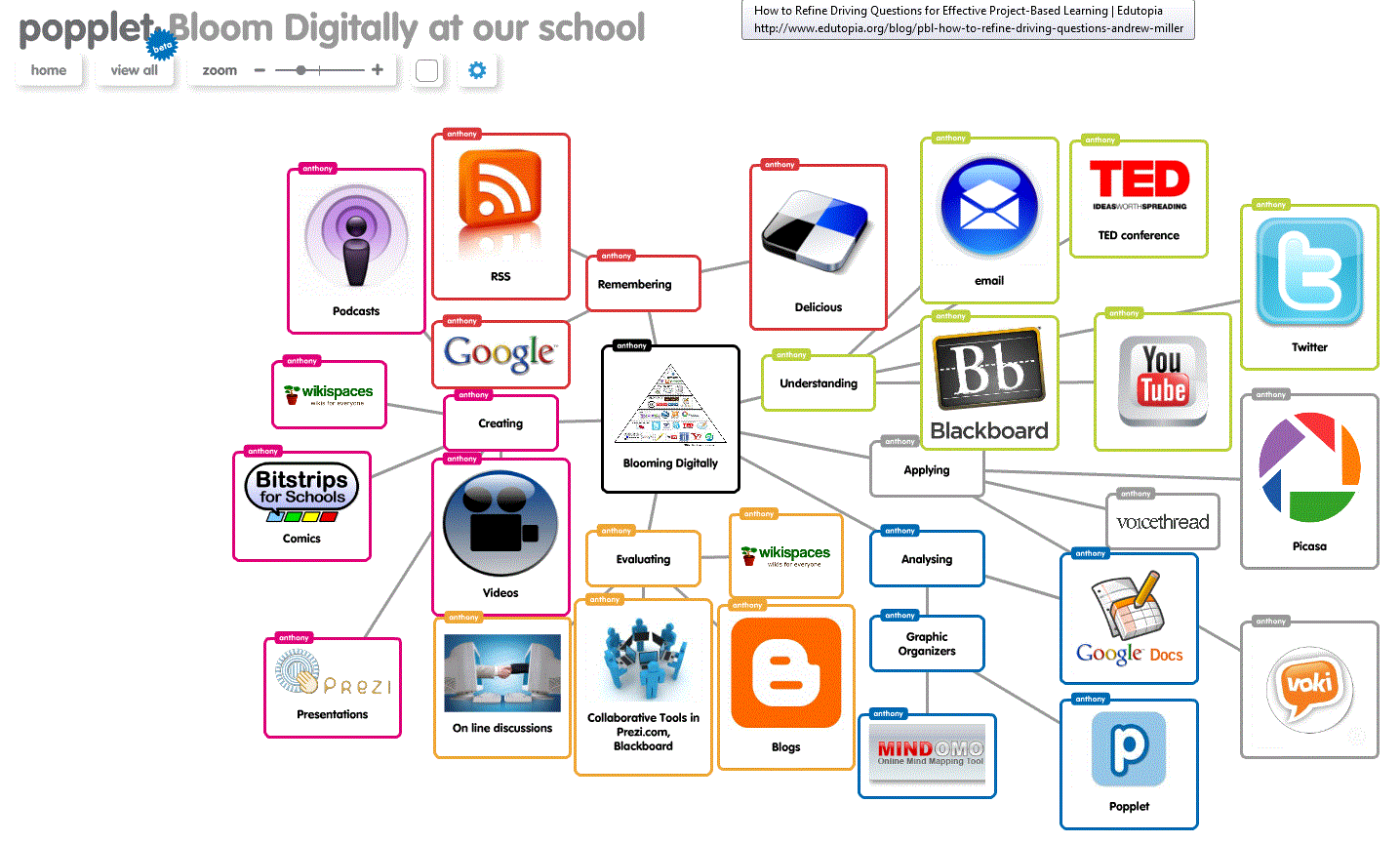
Popplet is a great mind-mapping and graphic organizer tool to aid planning and writing. Not only can you add text to your graphic organizer but you can also add a variety of sketches, graphics and multimedia. Collaborating with multiple authors is easy through a shared link as your file is stored in the cloud. (The hidden notes page is great for assessment or feedback from you!) Finally, the presentation mode allows you to create and navigate through a path of views from one “popple” (box) to another through your arrow keys.

Here are a few screencasts I made, that you are welcome to use in your classes. Lots more available on YouTube.(without my squeeky voice through:P)

Creating an account in Popplet

Getting started in Popplet

Student sample –Gr.4 Canadian physical region http://popplet.com/app/#/311851
Gr.4 Muslim Influence on the Medieval Europe – http://popplet.com/app/#/812393
Diversity of Living Things – Educator sample http://popplet.com/app/#/901161

This software is available in Windows and iOS and recommended for students from Grade 4 and up.

Writing Reflective Blogs in Blackboard

One of the advantages of our password-protected Blackboard site is the option to create a safe place for students to write, collaborate, edit and share. Setting up a blog is a great option for assessing student writing in a simplified format (i.e. not for elaborate Word docs with graphics, interesting fonts choices and backgrounds etc.) and creating and organizing a digital collection of student writing. This blog option can be customized to be private between you and your student or visible to all students in the class or grade for reading, commenting or peer editing. This tool also eliminates the need for transferring documents from home to school using USB drives, email or other online means. Students can login into Blackboard, click on the link and begin writing immediately. You can give direct feedback as a comment and have full control to delete or edit anything posted by you or your students.

There are two steps. In the first video, I demonstrate how to set up the blog and in the second video I cover posting a link for student access.
1. Setting up a Blog in Blackboard

2. Posting a link for student access to the blog

P.S. Remember only student accounts (i.e. 11111) can access the blogs and not the observer parent account (i.e. chu1643)

Technology Integration and the SAMR model

What is Technology Integration?

Technology integration is when students to learn, explore and create in a variety of subjects using technology.  The focus is on exploring good essential questions or themes with technology (technology integration) not on the device or software itself (using technology.) In my ICT classes, I strive to expand upon exciting themes and lines of inquiry in our lessons, activities and projects while meeting both the ISTE-NETS standards and CommonSenseMedia.org expectations. The new setting of the lab provides a new environment with new online tools for their research, exploration, collaboration, creation and sharing. The open “secret” is that a good theme or a rich essential question is never answered or finished as there is always more to know. (Although, students are pretty honest (thankfully) when they are ready to ahem -move on!)

Collaborating with teachers and students is critical for the success of technology integration. (I ask so many questions on what students are learning in other classes, I call myself Mr. Nosy. A colleague called Garth Nichols calls himself “the destroyer of classroom walls” which I like too!) Effective time to collaborate, plan and share will help determine where the theme or inquiry is to be explored (class, lab, home, school, all…) and what the best approach (pedagogy) for learning (team teach, solo effort, flipped, blended, F2F, online etc.)

My 3 reasons technology integration is effective for students

1. An integrated approaches validates the topic i.e. The student believes that this topic is important as multiple teachers are talking about it.
2. The lab or devices (or me too!) provide new tools (online) and a different context (software) to explore the topic
3. Allows students to study topics in greater depth (They bring their prior knowledge to class and they transfer their learning from ICT to other subjects.)

What is the SAMR model?

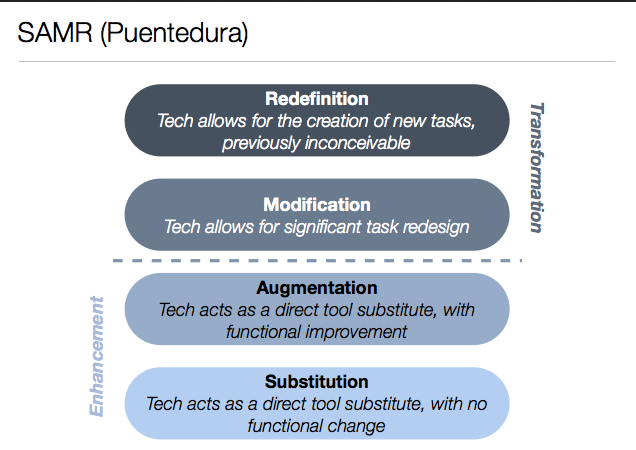
The SAMR model was designed by Dr. Ruben Puentedura and allows teachers to evaluate how technology enhances or transforms the learning experience. Is it substitution of a practice already occurring WITHOUT technology?  Does it augment the practice with additional features? Does it modify the task in different and exciting ways? Or does this technology completely redefine the task?

SAMR

How is the SAMR model useful for technology integration?
While researching  mobile technology and pedagogy for my graduate course, I discovered that the SAMR model was a perfect complement and expression of my current integrated approach to the curriculum with technology. Before learning about it, my simple goal was to ONLY integrate technology that enhanced student learning and knowledge. The SAMR model takes this idea one step further by breaking down the manner of that integration in projects or activities. This is an excellent resources for curriculum planning and collaborations with colleagues.


Reflecting upon the SAMR model

In my initial enthusiasm, I boldly declared (thankfully to myself!) that all my student activities with technology should be redefinitions. This is lofty goal will surely be true someday very soon but for now in 2013 a healthy balance of activities in different areas of the model might be best to win over all parties in our environment.

Final note – although this post refers to technology integration into classes, I am lucky to work with other specialist teachers who ALSO believe in an integrated approach. Thankfully, Art, Music, Physical Education and other Languages are spread liberally through the experiences and curriculum of students. AND being nosy I try to find out what all the specialists are doing too for integration opportunities. Perhaps I should wear a t-shirt with Mr. Nosy from the Mr. Men on it!

Further Questions
Should we use the SAMR to classify apps/software or tasks/inquiries or a combination of the two? (leaning towards to the latter)
example poster – Apps in Education SAMR poster
Where does PBL (Project based Learning) fit into the SAMR model?

Further resources on Technology Integration
A useful flowchart for Technology Integration  – So helpful for teachers evaluating when to use technology in their lessons.
Mitchel Norris’s exploration of Tech integration vs.Tech classes – I am arguing that a mixed approach works very well i.e. 1:1 environment  + ICT classes + integrated projects = 🙂Research from Edutopia on Technology Integration – lots of case studies and different model to explore
Excellent chart on “Using Tech vs. Tech. Integration” – clear and helpful!

Further resources on the SAMR model
Dr. Ruben Puentedura’s weblog – lots of slide decks on emerging technologies and exploring Horizon reports past and present
Dr. Puentedura’s slidedeck on SAMR(and TPCK)  models in Action – Some great examples and advice when considering technology integration
Jennifer Magiera’s blog post on using SAMR model for iPad integration – useful for us as we integrate iPads in classes!
Jamie Richard’s exploration of the SAMR model for Tech. integration into his middle schools classes
Allan Carrington’s Padagogy Wheel – combining the SAMR and Bloom Taxonomy for iPad apps and activities