What to do with all those tech tip messages… Here is a short video on how to take get a handle on all those messages in Outlook. Dragging completed or read emails in folders allows me to feel like I am staying on top of things(!) However, limiting this system to only 3- 5 general folders (i.e. school, coaching, PD, personal etc.) seems the quickest way to drag and find messages easily. This folder system is a quick tip that helps me (feel like I’m) getting things done.
Thanks. I hope that helps.
YouTube is pretty hit and miss (but mostly miss) for specific educational clips for your students. For an alternative, try BrainPop and BrainPop Jr. for short, specific, age-appropriate, fun and educational videos to kick off a new topic or reinforce lessons and learning.
This site is a big hit with students for an excellent balance of humour and learning and a sure hit for teachers with its excellent content. I love how you can search the videos by standand, subject and grade too! The IPad app is also used by my two primary kids too! The Game Up section is my next area to explore!
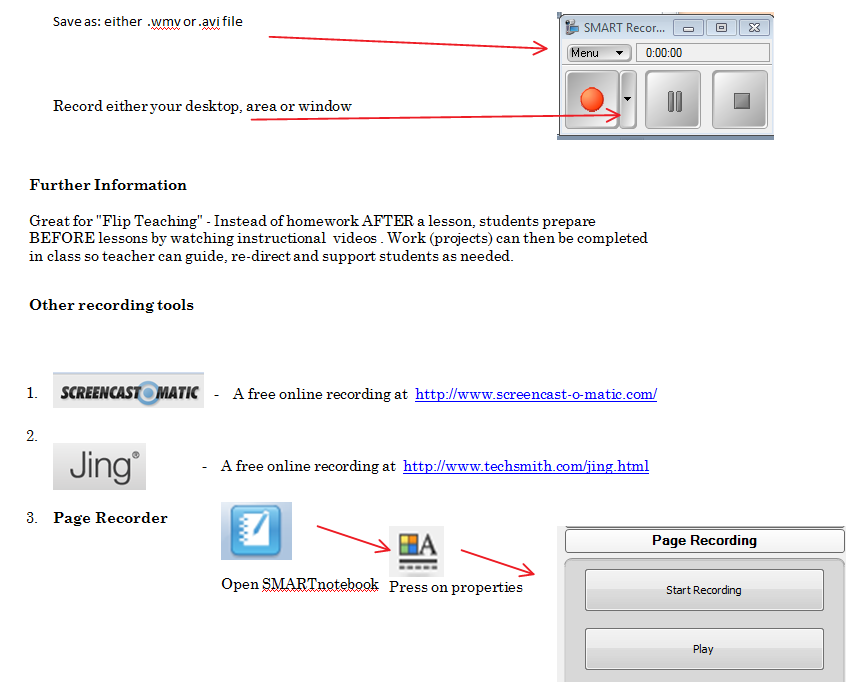
A new teaching strategy for our environment and students. See 2 min. tech. tip #2 for how to create your own screencasts/instructional videos. Online tools like Blackboard are excellent places to upload videos.
Purpose: to record short clips of your computer screen for students to watch as a videos
Ideas for Use
The ‘Net generation responds really well to short, specific and relevant videos for instructions, lessons or ideas. Students love being able to pause, play and rewind so they can watch at their own pace and repeat if needed. I find that video is really helpful for students when demonstrating a specific set of technology instructions (i.e. first press here then press here etc.)
The famous Salman Khan from the Khan Academy based his Math lessons, business and vision around this strategy…
According to Ferris Bueller: “Life moves pretty fast. If you don’t stop and look around once in a while, you could miss it.” The same could be said for technology these days.
This year I am hoping you will take 2 min. to try a few new ideas and tips from the ever-changing educational technology world. Some you might know, but hopefully you will pick up a few new tricks to improve your tech. skills.
Goal: Training should be quick, relevant and helpful for teachers.
Delivery: weekly to your inbox by email OR by Twitter. Feel free to follow me at @anthonychuter
Follow up: Up to you! Depending on feedback and interest, I can schedule follow-up sessions if a topic, resource or idea needs more attention. Thanks for reading and I look forward to your feedback!
Whether it is on a field, court or computer screen, games have been a huge part of my life. My classroom is no different as games-based activities are a perfect compliment to my lessons and activities as a teacher. Not surprisingly, students love games and well-designed games help students easily measure their success (and failure!) and use that information to motivate them to a higher level of achievement.
I recently applied game theory to our typing practice and experienced an amazing boost in student achievement and motivation. For the last few years, students have used a web-based software called Custom Typing to complete tailored lessons, activities and games to improve their typing speed and accuracy. This year I integrated the idea of “leveling up” when they reached a specific goal (i.e. 15 WPM and at least 95% accuracy). When students achieved specific goals, they “unlocked” access to more games and activities both on the Custom Typing site and beyond. Some of our favourite keyboarding sites and software included Mavis Beacon, typingtest.com, and Typing Racer. See my keyboarding page for more resources.
Students enjoy improving their typing because they immediately see its practical application and can easily measure their progress and achievement. This game-based approach “leveled up” my teaching too as students were even more motivated to practice and receptive to guidance and teaching. They were keen to “level up” and earn access to more activities and games. Recently, when I was away on the Grade Four school trip, students in Grade Five were so keen they emailed me screenshots of their progress too! After some feedback and tweeks, I am ready to build upon this year’s success by creating a “leveling-up” system that is clear, progressive and fun. After all, this is an area of the curriculum that demands practice and dedication. Game theory took this learning to a new level and was more fun, progressive and motivating!
List of other games and simulations from my class
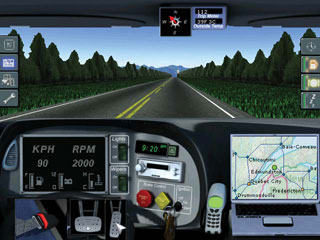
1. Cross Country Canada 2 – A simulation game where students become a truck driver and deliver commodities across the country. This was an excellent way for my Grade 4 students to learn Canadian geography. Crossing my fingers for app version of this favourite game!
2. Ice Cream Trunk – A simulation game where students sell ice cream for profit. Our Grade 3 students learned about profit and addition (and subtraction when business was bad!) and our Grade 5 students learned about spreadsheets and graphing profit over time.
Finally, here is a link to the BrainPop Game Up site with a variety of professional and student created educational games that address many topics and activities.
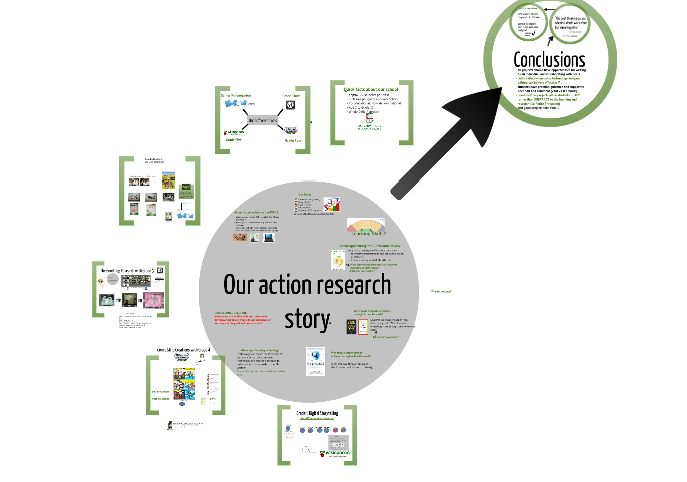
Two years of research, collaboration and hard work came to a satisfying conclusion on April 25th 2012 as our Action Research team presented our findings to colleagues and guests on enhancing collaboration and creativity for the 21st Century learner. We attended seminars, workshops and received expert guidance from colleagues our Ontario Institute for Studies in Education OISE professors to help us frame our action research. What an excellent experience to work, learn create and collaborate with my team and variety of experts!
We concluded that best practice would be to allow students opportunties to collaborate and work individually for ALL project-based learning . Our research and reading indicated that creativity is enhanced by conversations and interactions but students do need time to work out ideas individually. Projects should not be either individual or collaborative but both in order to flourish.
To some of us, it probably seems too little early for teacher software nostalgia but I have to say that one of my all time favourite ebook apps (we just called it software back then) was the Living Books Series on CD-ROM! After popping the disk in the good old cd tray, this series transformed books like Mercer Mayer’s Grandma and Me and Marc Brown’s Arthur’s Computer Trouble into multimedia treats. Kids loved these as the animations always surprised and often yielded extra depth to the stories (ok, characters falling over often helped too!) In the “Read to Me” mode, the text appeared on every page and highlighted relevant words with the narration. These interactive stories were an excellent stimulus for projects but were just as relevant when simply read and enjoyed.
The good news is that, today there are many sites or apps similar to Living Books, ready to interest and engage this current generation of students. With Apple’s new IBook2 creator app for the Mac, I see great potential to embed an interactive storybook inside a teacher-created textbook for students, parents and teachers to analyze, examine and enjoy.
Here is a list of my favourite interactive e-books for primary students.
1. Tumblebooks: This site is nicely categorized and the navigation allows easy access to many fiction and non-fiction books for students. (Some are even IPad friendly.) Features includes music, narration (sometimes by the author), highlighted text and some even have related games and activities. It is subscription-based site but provides a good cross section of ebooks appropriate for a school setting. Local libraries here in Canada often have their Tumblebooks sites open to the public.
2. We Give Books.org – This Flash-based site is not interactive but the stories are displayed in its entirety in a “flipbook” style on the web. Perfect for viewing with a IWB or projector for group discussions and activities. Finally, the site is free(!) to use and the publishers donate to charity when you “click through” and complete reading the book. Free books and reading to donate makes this site a worthwhile to me.
3. Raz-kids.com – A colleague recently shared this subscription-based site where students have access to leveled reading books. This site allows teachers to track student progress and students can read the books themselves, listen to the story with highlighted text and record their own narration. In addition, the software has a built in incentive program. Completing activities earns them stars to customize the site and earns ranks and virtual items.
4. App Store or equivalent for your tablet device: Comb these stores for a number of free and paid interactive ebooks. For my IPad and IPhone, I recently found a Rapunzel app for free is a current favourite. The original Toy Story app (free) is great with some of the features of Living Books but with the added bonus that kids can record their own narration. Also the Dr. Seuss books like Green Eggs and Ham and The Cat in the Hat (currently $3.99) are great fun too. Also worth it to mention Pop Out Peter Rabbit and a Charlie Brown Christmas as others that spring to mind. In short, there are so many to choose from and the best advice for teachers is to build a collection of books appropriate to your students and their needs. Thankfully, your iTunes account remembers all your purchases (I only have a 16G IPad so space is sometimes at a premium) so the story can rest in the cloud and be downloaded and enjoyed when needed.
5. YouTube.com – Have to include this site as there are many excellent video clips. Obviously, video is not exactly interactive but the huge database of resources is impossible to ignore or use in the classroom. Here is a playlist of a few fun stories for primary students.
Here is a YouTube clip of a Living Books (yes, still alive!) version of Tortoise and the Hare. This video version demonstrated some of the animations that allowed you to explore a text in a non-linear fashion but the video is definitely not the same as the software.However, the story provided a good starting point for our Grade Two classes to learn about and create their own folk tales.
Feel free to send me your comments and ebooks suggestions too!
As a teacher, there is nothing better than sharing projects from students on the web. They love showing off their hard work and feel validated that their sweat and tears (hopefully not that many!) have an audience beyond the teacher with the proverbial “red pen” at the ready! In addition, I avoid projects that give away any information about the student. Our school has a LMS (Blackboard) and we created a section in each student’s course to showcase their work and progress. This password protected area is an excellent place to showcase student success and achievement. In our Junior division, we have taken it a step further by having each student create a “blogfolio” which combines elements of a digital portfolio and allows students to learn the basics of comments and online discussions with student work as a focus.
My latest tool for sharing is called Flipsnack and this free service creates a digital flipbook from any .PDF file. In training sessions, I have encouraged our teachers to either scan documents through our printer as a .PDF or create .PDF’s (i.e. saving a Word etc.) Their “Flipsnack” creations can then be shared by a URL or embedded in a web site, blog, wiki or LMS. Also good to note that there is 15 page maximum for each “free” book. However, it ended up creating two books for each project per class.
Overall, the feedback has been great and Flipsnack has joined my collection of sharing apps including Google Docs, Picasa, Photo Story or Windows Live Movie Maker. Happy sharing!











 ict4kids.ca